Setting up on Windows
bash
There are two recommended ways to set up bash on Windows OS, either by installing Git Bash or by enabling the Windows Subsystem for Linux (WSL)
Installation instructions to both methods of setting up bash are described by the Carpentries in the following resource, in separate tabbed pages https://
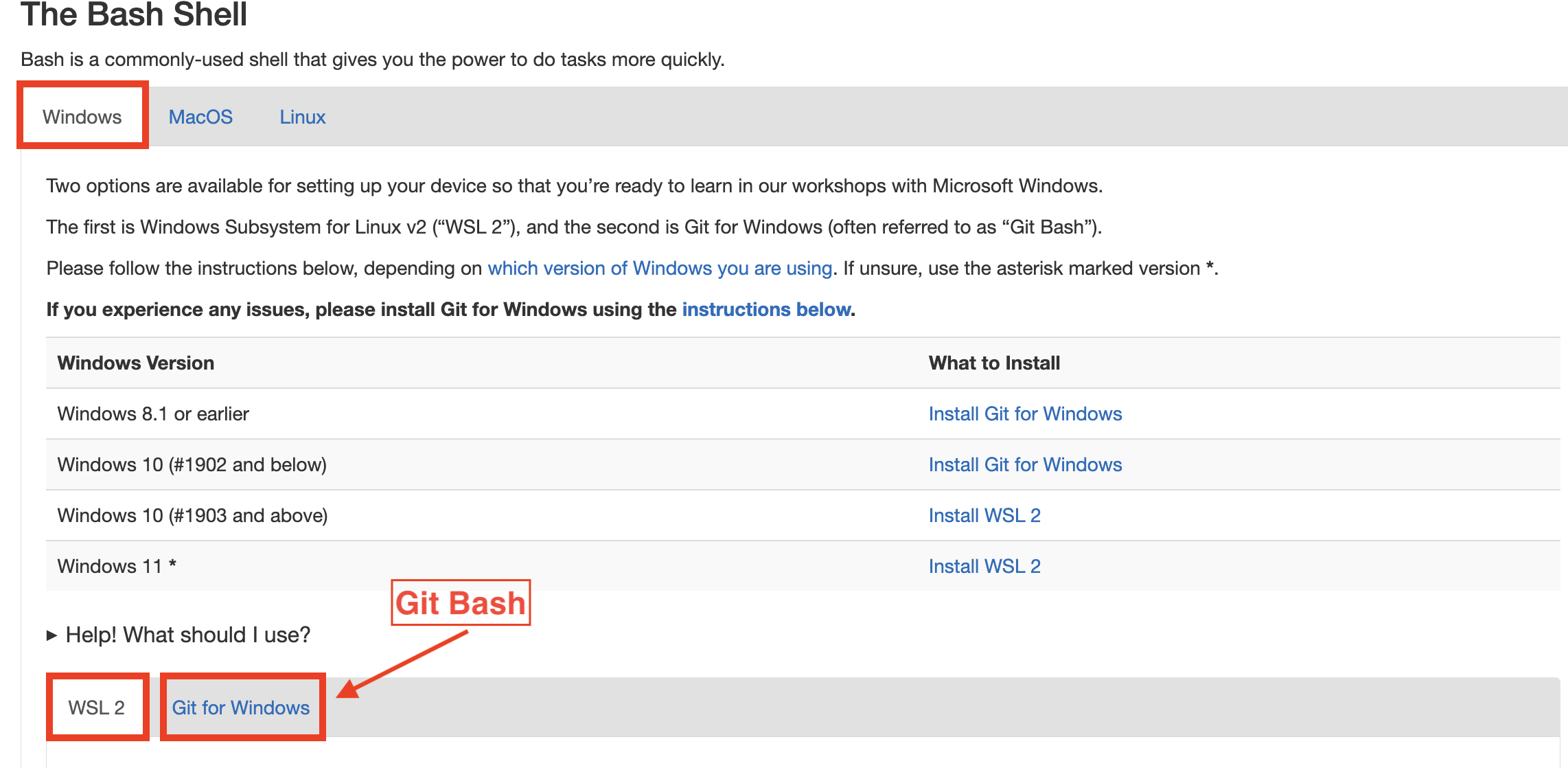
An alternative resource for installing Git Bash can be found here: https://
git
Whether you installed Git Bash or enabled WSL, git should have come bundled with both. The Carpentries also provide guidance on how to confirm the installation, or install git on WSL. The guidance can be found here https://
I also provide some instructions on how to check your installation below:
Test the git installation
Git Bash
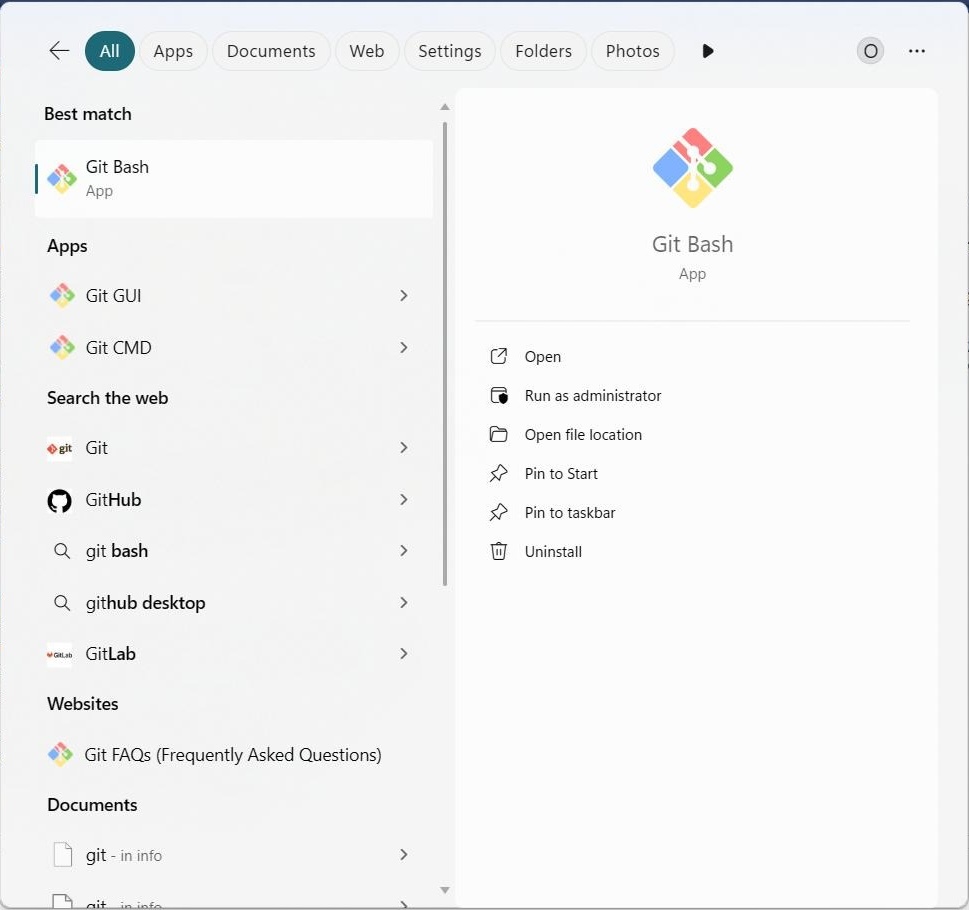
Navigate to your start menu
Start typing “git bash” into the search bar
Click on the Git Bash icon to start the program
Type the following
gitPress Enter
You should see the help menu come up
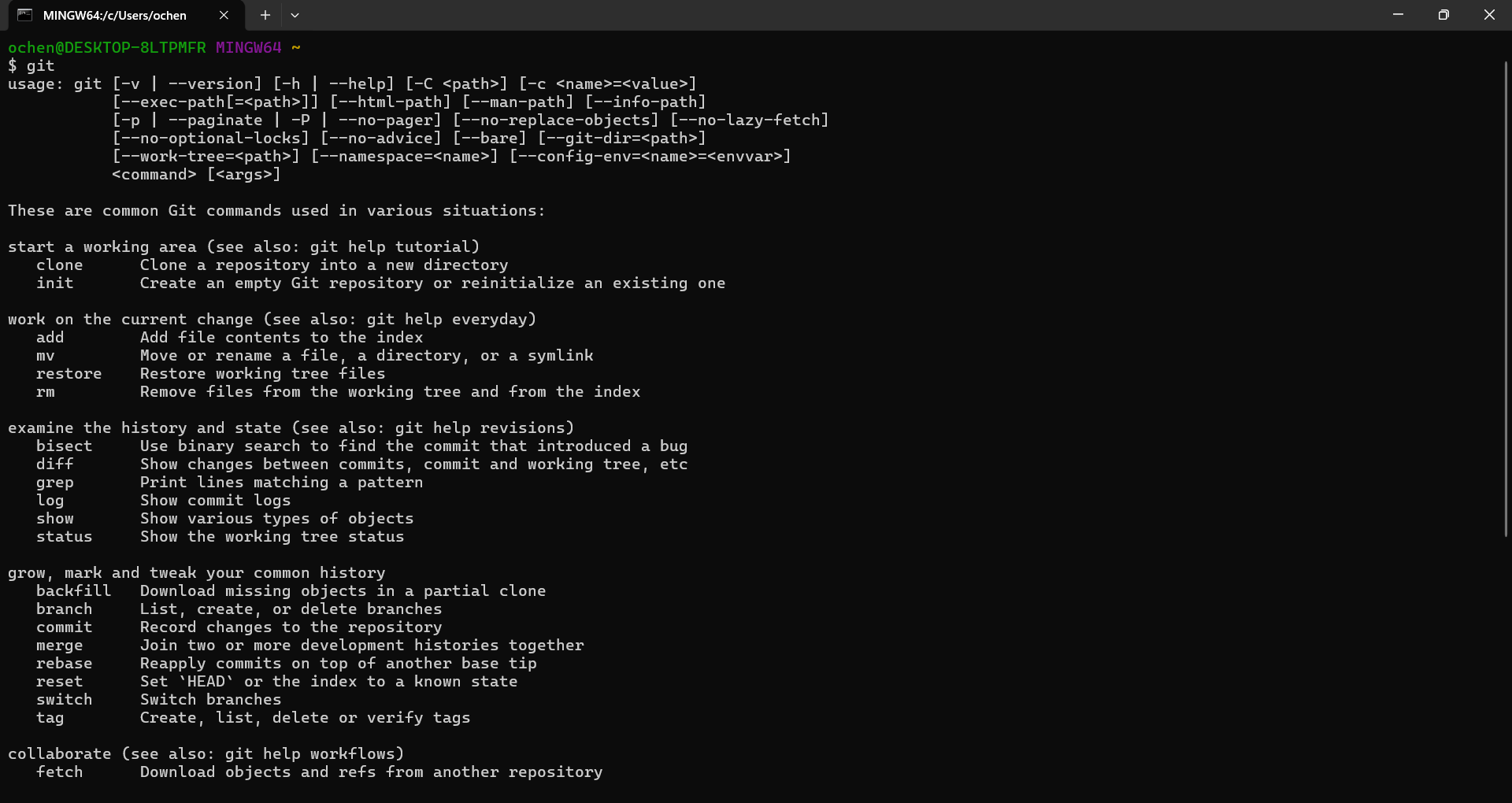
Close the program or type
exit
WSL
Git usually comes packaged with WSL;
Navigate to your start menu
Start typing “windows subsystem for linux” into the search bar
Click on the relevant icon to start the program
Type the following
gitPress Enter
You should see the help menu come up,
If
gitis not recognised as a command then you will need to install it using your system’s package managerType the following commands into your terminal
sudo apt updatesudo apt install gitGo back to step 4 to test the installation
Close the program or type
exit
GitKraken
To install GitKraken,
Navigate to https://
www .gitkraken .com /download Select the installer for your operating system
Run the installer once downloaded
GitKraken will start automatically once installed on your system
For further information, check https://